Example · one file, two ways
One file, two ways: the native import vs Sloose
One spreadsheet from an expo: a company, a person and a deal on every row. Here it is taken into Zoho CRM twice, once with Zoho's own import and once with Sloose, with the minutes each step takes and what can go wrong at it.
The file
Seven rows, like the first rows of a real export. Every row is three records: an account, a contact and a deal. The marked cells are the ones that make it hard.
| A | B | C | D | E | F | G | H | I | |
|---|---|---|---|---|---|---|---|---|---|
| 1 | Company | Contact | Job title | Mobile | Opportunity | Value | Stage | Expected close | |
| 2 | Brightwater Joinery Pty Ltd | Priya Ramanathan | Operations Manager | priya.r@brightwater.example | 0491 570 156 | Workshop fit-out | $48,500 | Quote sent | 15/11/2026 |
| 3 | Brightwater Joinery Pty Ltd | Tom Okafor | Purchasing | tom@brightwater.example | 0491 570 157 | Spare parts contract | $6,200 | Qualified | 30/11/2026 |
| 4 | Kestrel Ridge Hire | Lena Fischer | Owner | lena@kestrelridge.example | 0491 570 158 | Fleet tracking pilot | $12,000 | Discovery | 1/12/2026 |
| 5 | Saltbush Solar Co. | Marcus Bell | Project Lead | m.bell@saltbush.example | 0491 570 159 | Warehouse roof array | $96,750 | Negotiation | 20/12/2026 |
| 6 | saltbush solar co | Aisha Rahman | Finance | aisha.rahman@saltbush.example | 0491 570 110 | Warehouse roof array | $96,750 | Negotiation | 20/12/2026 |
| 7 | Tidewell Plumbing | Sam Nguyen | Director | sam@tidewell.example | 0491 571 266 | Service agreement | 9,600 | quote sent | 2026-12-05 |
| 8 | Orchard Lane Catering | Grace Liu | Events Coordinator | grace@orchardlane.example | Christmas functions | $3,400 | Won | 28/10/2026 |
What the CRM needs from it: accounts, contacts and deals, with each contact linked to its account and each deal to its account and contact. Stages have to be options the Stage picklist really has, and dates have to be read the right way round.
Side by side: by hand, and in Sloose
Six steps each. The difference is less in the number of steps than in what each one asks of you, and in how many times the file is copied.
By hand, with Zoho CRM's import
- Copy the companies into a file of their ownabout 10-20 min
Zoho's advice for contacts and accounts in one file: copy the account details to a separate file, remove the repeats, and import that first.
Risk: 'Saltbush Solar Co.' and 'saltbush solar co' are one company. Removing duplicates keeps both, because the spelling differs, so it can become two accounts.
- Fix the values with helper columnsabout 15-30 min
Stages have to match the picklist ('quote sent' against 'Quote sent'). Each date column needs one format, because the import asks for one format per date field. One amount has no currency sign.
Risk: A helper column copied down one row short, or a date read the wrong way round, looks like every other cell.
- Import the accountsabout 5-10 min
Upload the companies file to Accounts, map the columns, and choose what happens to duplicates.
- Import the contacts, linked to their accountsabout 10 min
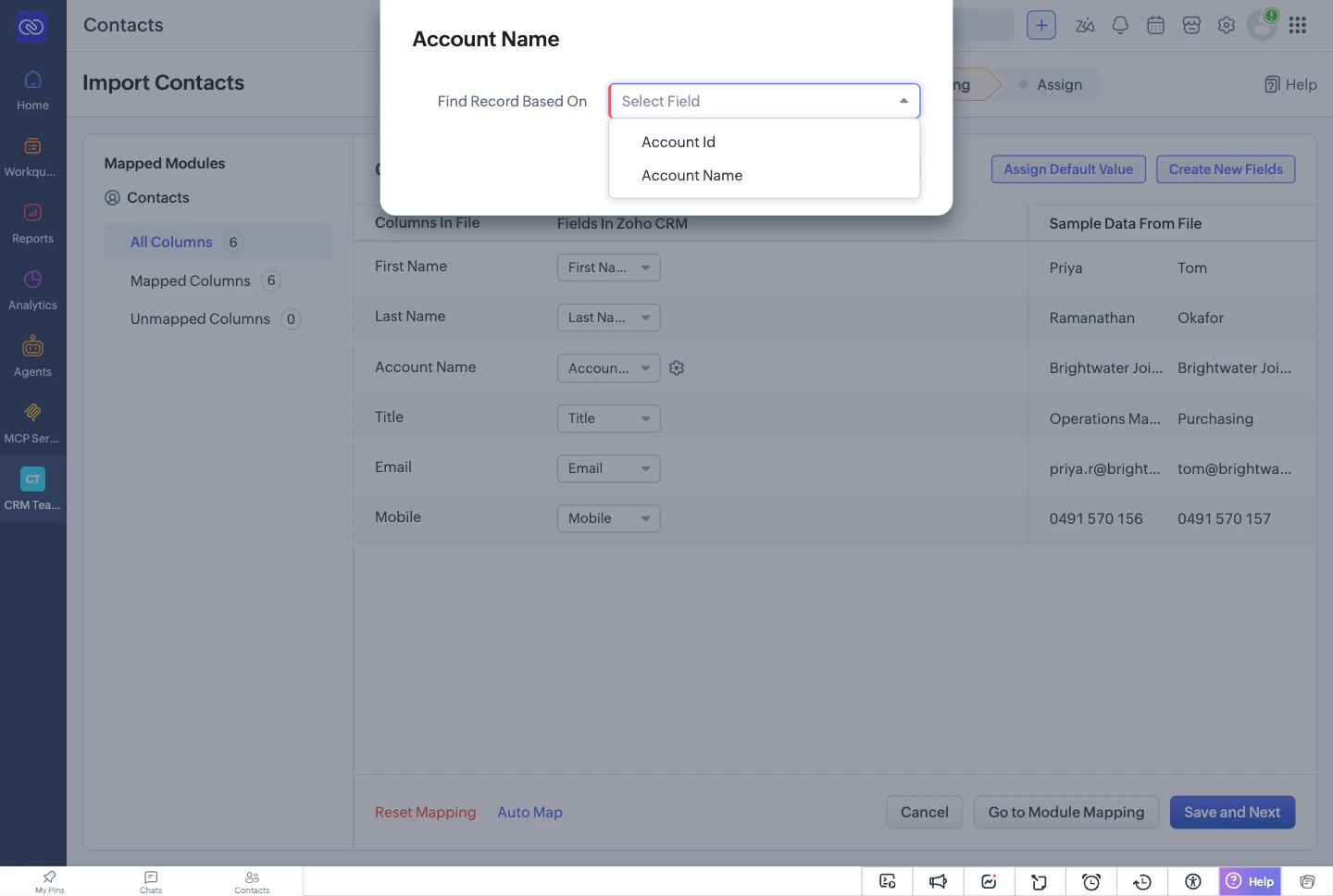
Upload the original file to Contacts. The Account Name lookup finds each account by the column you choose: a record ID, a unique field or the account name.
Risk: A company spelled differently from the account you imported may not find it.
- Import the dealsabout 10-15 min
Upload the file a third time, to Deals, with a lookup for the account and one for the contact. A contact can be found by email.
Risk: Three uploads of one file. A row fixed in one copy and not in the others no longer agrees with itself.
- Fix what failed and import it againabout 15-30 min
Download the list of records with errors (Zoho keeps it for seven days), fix them in the spreadsheet, and import them again into the module they failed in.
Risk: Import the whole file again instead of the error list, and the rows that worked can be created a second time unless the duplicate setting catches them.
About 65-115 min in all
Our estimate, not a measurement: a competent spreadsheet user, a file like this one with about 500 rows, done for the first time.
In Sloose
- Upload the file onceabout 2 min
As CSV, as .xlsx, or pasted. Choose the connection, then the modules: Accounts, Contacts and Deals.
- Draft everythingabout 10-15 min
Sloose matches columns to fields by name for free, then asks the AI about every column and the values of each picklist it maps. Each answer arrives as a guess for you to accept or change. This step uses AI credits; Without the AI is the free choice.
Risk: The AI can guess wrong. Nothing it proposes is used until you accept it.
- Check the valuesabout 5 min
Translate values lists each distinct picklist value. Where your Stage picklist has 'Quote sent', 'quote sent' differs only in capitals and is matched for free. '$48,500' and '9,600' are both read as amounts, and the dates in your organisation's date order.
- Say how existing records are foundabout 2-5 min
Per module: match accounts on the company name and contacts on email. Say what happens when one record matches (update or skip) and when several do (ask me, use the first, skip, or create). The second Brightwater row then finds the account the first one made, so it is one account. 'Saltbush Solar Co.' and 'saltbush solar co' are a full stop apart, so tidy the name with a formula (Ask AI can suggest one) or they stay two.
- Validate, then a dry runabout 5 min
Validate checks every module before anything is written, and costs nothing. A dry run goes through every row and writes nothing: each row shows Would create or Would update.
Risk: A dry run cannot prove your CRM will accept every record. Its own validation rules show only on a real write.
- Run, then retry what failedabout 10-15 min
Sloose works out the order from the links: each row's account, then its contact, then its deal. Failed rows are grouped by reason. Retry runs only those rows, and the rows that worked are not touched.
Risk: The run happens in your browser. Keep the tab open until it ends.
About 34-47 min in all
Our estimate, not a measurement: a competent spreadsheet user, a file like this one with about 500 rows, done for the first time.
Zoho facts are from Zoho's help (importing data,import FAQ), checked on 3 October 2026.
Splitting one file into modules
By hand
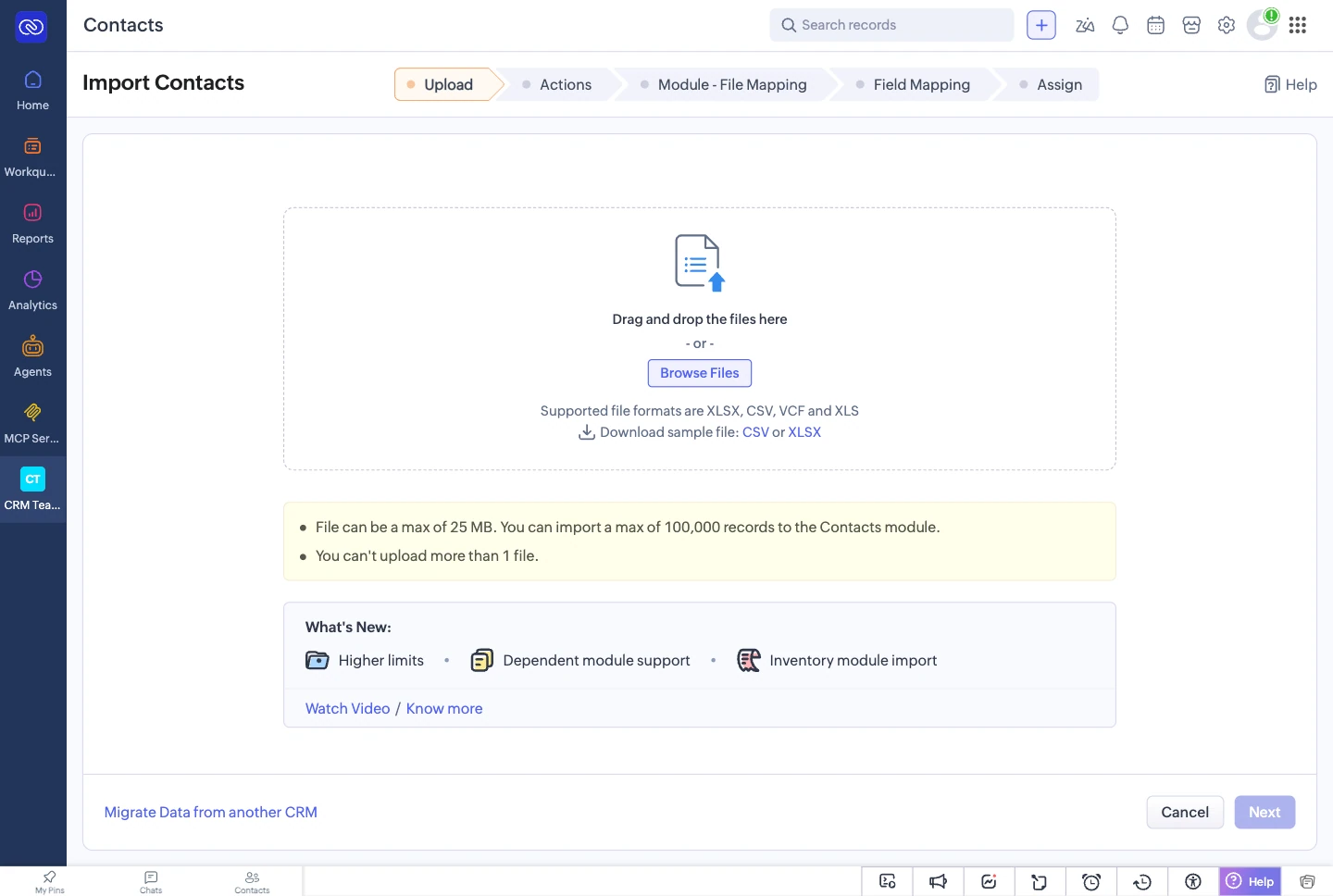
Zoho's import takes one main module per upload. For contacts and accounts in one file, its FAQ says to copy the account details out, import them into Accounts, and then import the original file into Contacts. Deals are a third upload, with lookups to the accounts and contacts the first two made.
In Sloose
One import, one file, three modules. The map of the work shows each module the file feeds, and the run writes each row's account, then its contact, then its deal, linked to the records the same row made.

Links between records
By hand
Each lookup column finds its record one way, chosen when you map it: a record ID, a unique field, the record's name, or an email for contacts. A company spelled another way from the account you imported may not find it.
In Sloose
A deal can link to the account and contact its own row made (rec.Account in a formula), so there is no ID to look up. Where a link has to find a record your CRM already holds, a lookup can search any searchable field and says what happens when none or several match.
Picklists, amounts and dates
By hand
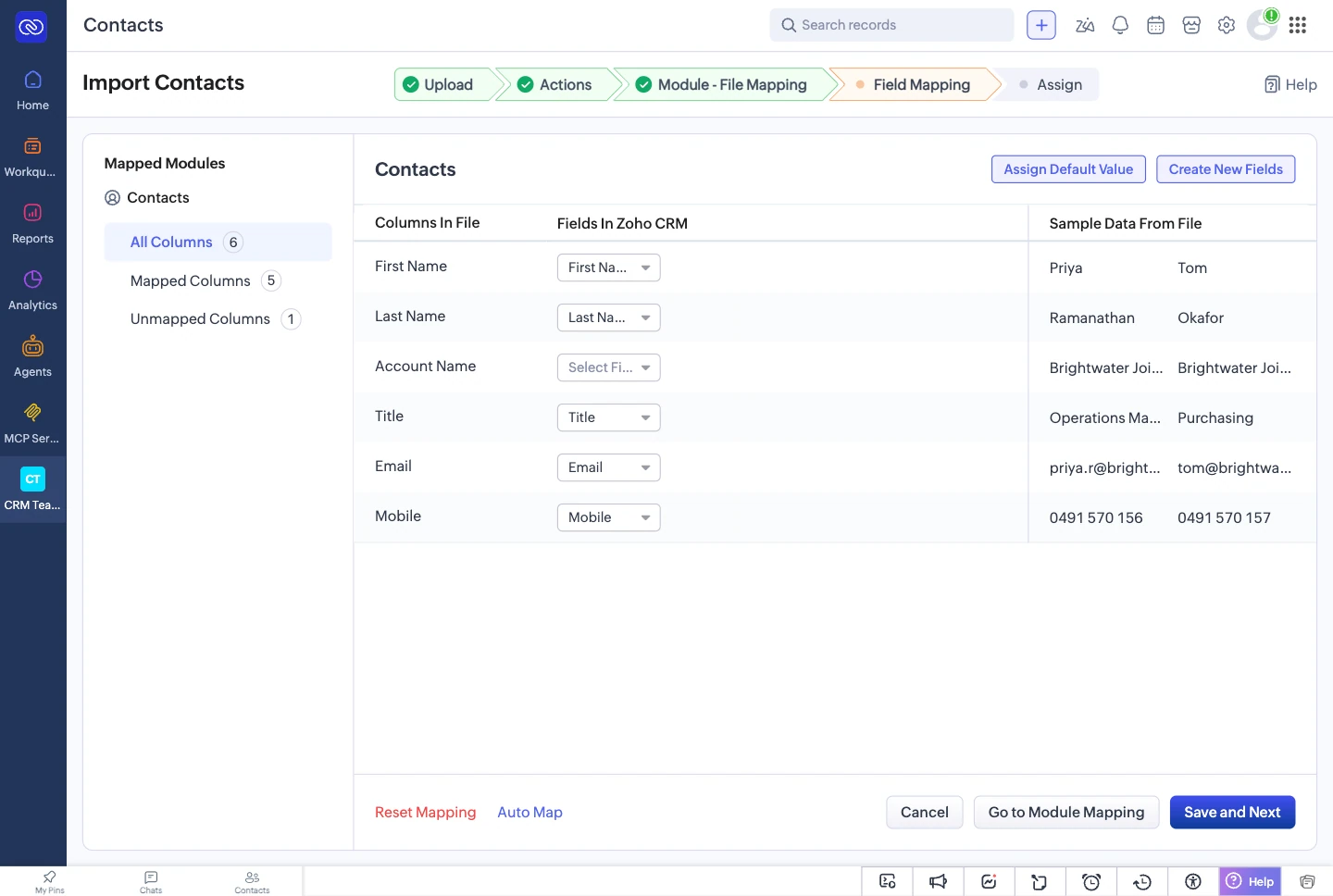
A value the picklist does not have is one of the reasons Zoho gives for a failed import, and in our test it was kept as typed instead, beside the field's real options. A date column is read in the one format you choose for that field. So the stages and dates are fixed in the spreadsheet first, with helper columns.
In Sloose
Translate values lists every distinct value against the field's real options. Spellings that differ only in capitals, spacing or punctuation are matched for free. For the rest, such as 'Won' against 'Closed Won', the AI can suggest an option, and every option it names is checked against the field before you see it. A value left untranslated stops the run at Validate, so it never reaches your CRM.

Records you already hold
By hand
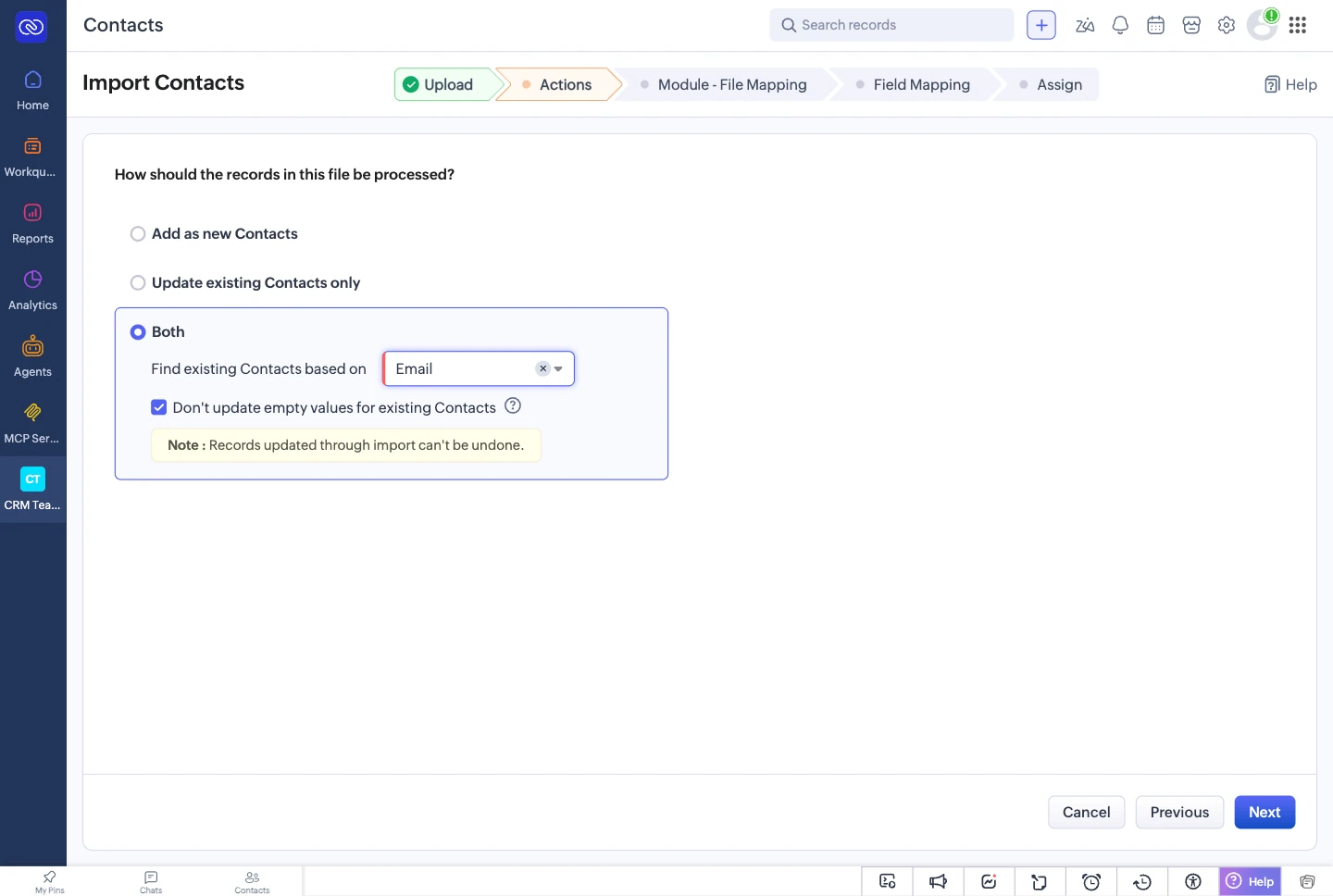
One setting for the whole upload: add as new, update existing, or both, recognised by one unique field. When updating, Zoho can skip empty values, so a blank cell does not clear a field.
In Sloose
A rule per module: accounts by name, contacts by email, or by a formula, such as the email in lower case. When one record matches you choose update or skip. When several match you choose: ask me, use the first, skip, or create. Ask me stops on that row during the run and lets you pick.

Checking before anything is written
By hand
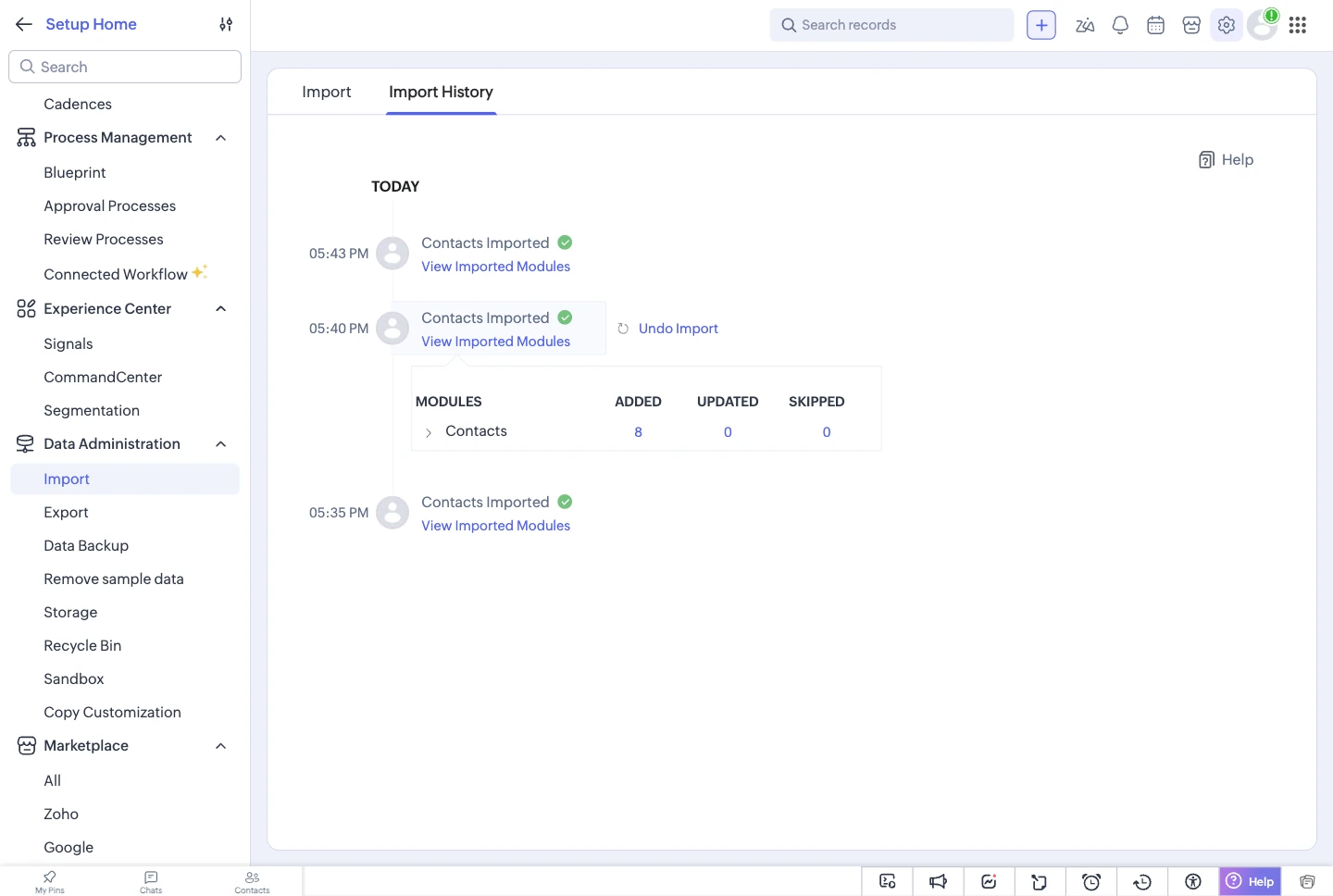
You check the mapping, then import. If the result is wrong, Zoho can undo the records an import added, for 30 days. Updates it made cannot be undone.
In Sloose
Validate checks every module, value and formula before anything is written, and costs nothing. A dry run goes through every row and writes nothing, showing what each row would create or update. Sloose has no undo, so this is where you catch mistakes.


When some rows fail
By hand
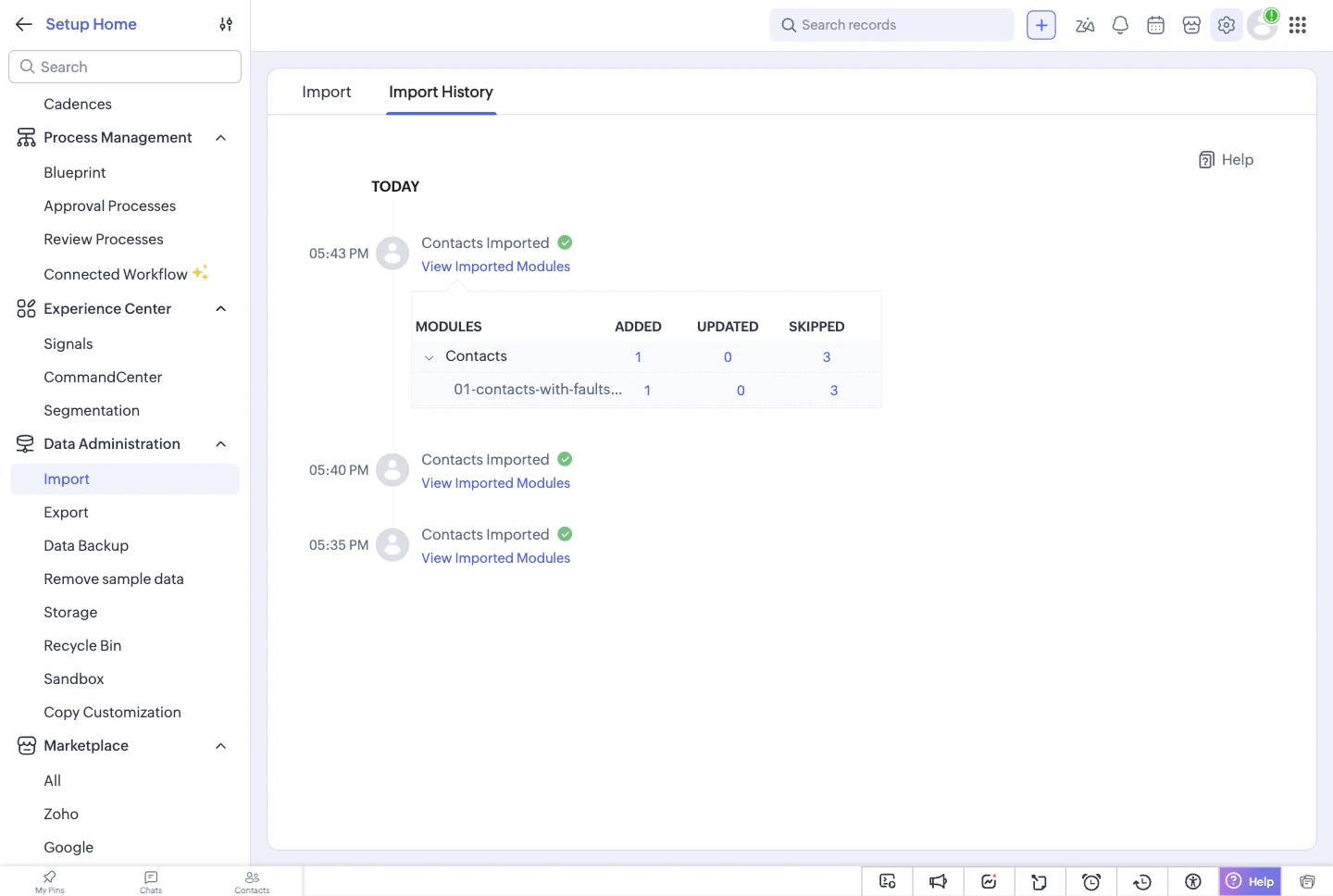
Zoho offers the list of records with errors for imports in the last seven days. You fix them in the spreadsheet and import that list again, once for each module where something failed.
In Sloose
Failed rows are grouped by the reason your CRM gave. Fix the cause, then Retry runs only the failed rows, and the records that worked are not written again. A retry does not use AI credits, and a retry of a run that ended with failed rows does not count as a new run, up to three in a row. Every run also has a results file: each row, what happened, and the error.

Next month's file
By hand
The splitting, the helper columns and the order of uploads are spreadsheet work, so they are done again with next month's file.
In Sloose
Save the import as a template. Next month, start from it: Sloose checks the new file against it for free, and shows what matched, what was renamed and what is new. Fill the gaps asks the AI only about what the check left open. If nothing is open, there is nothing to pay for.

Where Zoho's import is better
- It comes with Zoho CRM, at no extra cost.
- It runs on Zoho's servers, so nothing has to stay open while it works.
- It can undo the records an import added, for 30 days.
- It can trigger automations, ask for manual approval of imported records, and assign owners by assignment rules.
- It can create new fields for unmapped columns while you import.
- It reads .xls files. Sloose reads .xlsx and CSV, and asks you to re-save an .xls as .xlsx.
From Zoho's help on importing data, checked on 3 October 2026.
For one tidy file per module, with values already spelled as your CRM spells them, Zoho's import is the simpler choice. Sloose is for the files that are not like that.
The two ways, row by row
| Compared | Zoho CRM's import | Sloose | Better |
|---|---|---|---|
| PricePricing | Included with Zoho CRM | Free plan; paid plans from US$49 a month | Zoho CRM's import |
| One file, three modulesZoho FAQ | Copy the accounts to their own file and import them first, then the contacts (Zoho’s advice) | One import feeds all three, in the order their links need | Sloose |
| Mixed date formats in a columnZoho help | One format chosen per date field | Read in your date order; a formula can choose per row | Sloose |
| Picklist values that don’t matchZoho FAQ | A value the picklist lacks can fail the import (Zoho’s FAQ) or be kept as typed (our test) | Translated before the run; a value left untranslated stops the run at Validate | Sloose |
| Existing recordsZoho help | Add, update or both, by one unique field for the whole file; can skip empty values when updating | Per module, on any field or a formula; several matches can ask you, record by record; a company repeated in the file finds the account the run made | Depends Zoho can skip empty values on update |
| Before anything is written | The mapping step | Validate (free) and a dry run that writes nothing | Sloose |
| UndoZoho help | Undo records an import added, within 30 days; updates cannot be undone | No undo | Zoho CRM's import |
| Failed rowsZoho help | Download the records with errors (seven days), fix them, import them again | Grouped by reason; retry only the failed rows; a results file for every run | Sloose |
| Where it runs | On Zoho’s servers | In your browser tab, which stays open until the run ends | Zoho CRM's import |
| Next month | The spreadsheet work is done again | A template, checked against the new file for free | Sloose |
Facts about other products last checked on 3 October 2026.
The full comparison is on Sloose vs Zoho CRM's import. The import steps are in the docs: Map fields,Validate and Run.
Questions people ask
Can I import contacts, accounts and deals from one spreadsheet into Zoho CRM?
With Zoho's own import, its help suggests copying the account details to a separate file, importing that into Accounts first, then importing the original file into Contacts (Zoho's import FAQ). Deals are a third import. In Sloose the file is uploaded once and one import writes the account, the contact and the deal for each row, linked.
Can I undo an import?
Zoho CRM can undo the records an import added, for 30 days. It cannot undo updates (Zoho's help). Sloose has no undo. What it gives you instead is a check before anything is written: Validate and a dry run.
Does running the import use AI credits?
No. Running an import, a dry run and a retry never use AI credits. Writing records counts against your plan’s runs and rows. Credits are spent only when someone asks the AI, for example by pressing Draft everything.
Do I have to keep my browser open while Sloose imports?
Yes. A Sloose import runs in your browser and writes through your CRM connection, one row at a time. Keep the tab open until the run ends. Zoho’s own import runs on Zoho’s servers, which is one of the things it does better.
Bring your own file
Start on the free plan and take one of your own spreadsheets through. No card needed.